I keep on getting a lot of emails from members asking me about how to create the portrait thumbnails for the members page, or get sent portrait images at the wrong size - requiring me to do all the work myself.
So... for those who don't know how to do a 100x120 pixel portrait image - this page will explain it. The following instructions were done with Photoshop, but almost any image editing program will do. The steps are pretty similar in all.
For this example I used my South-Park image from the South-Park members page. (link)
Start by using the crop tool and draw a rectangle around the face - leaving out all
the space around you don't need. It's probably best to focus on the height more than
the width - so make the rectangle closer to a square (not like this image) so we'll
only worry about cropping the sides later.
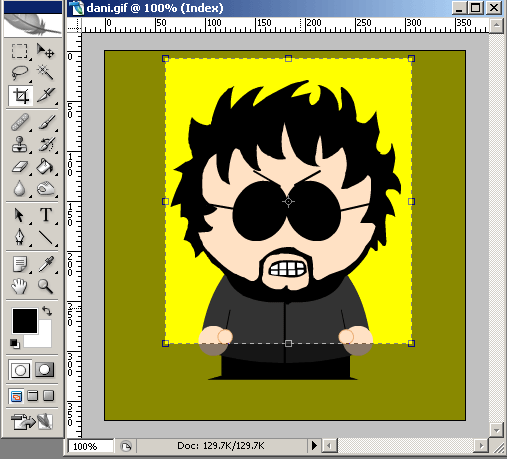
double-click in it or hit Enter to accept.
Go to the Image menu -> Image Size... - and set the height to be 120 pixels. The width
should change to 100 pixels or more. If it's less than 100 pixels - set the width to be
100 pixels and we'll crop the top and bottom instead of the sides (the height then will
become greater than 120 pixels)
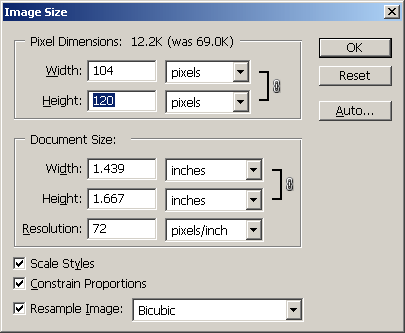
Hit OK to accept
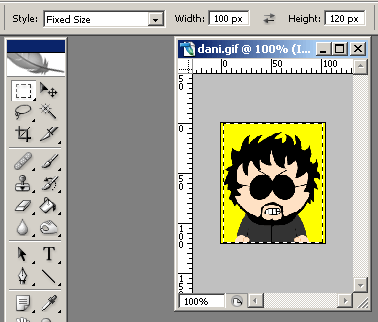
Choose the Rectangular Marquee tool and in the options set it to be of fixed dimensions
rather than normal. Set the width to 100 and the height to 120.
When you click in the image now you'll only be able to slide the fixed-size marquee
from side to side (or top to bottom if your image is longer than 120 pixels).
Lock it at the best position where your face fits.
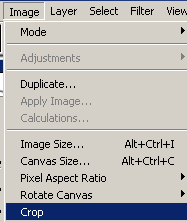
Under the Image menu - choose Crop.
Save either as GIF or JPG (you can save as both and see which one is smaller in size).
GIFs are better for drawings (where the colour palette is limited) and JPEGs are better
for photos. Still - test each to see which one is better in size/quality. A good file
size is 5-15 Kb.
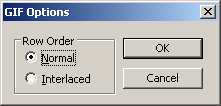
If you chose GIF - save as Normal
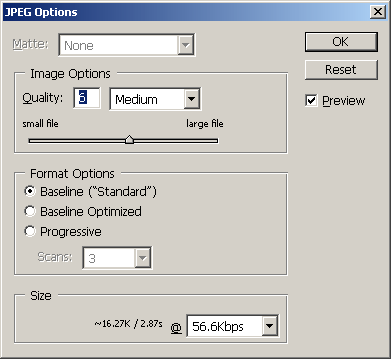
If you chose JPG - choose a decent compression - to keep the size small.
Final image - 100x120: